Administrator Guide
Administrator Guide
End-to-end operational guide for system administrators. Covers every aspect of managing workstations, students, questions, exams, and real-time monitoring from the AEGIS dashboard.
Logging In
Navigate to /login. Enter the credentials created during database seeding. On success, the server sets an auth HttpOnly cookie and redirects to /dashboard. Sessions persist until explicitly logged out.
bcrypt before storing them. This is noted as a priority in the roadmap.
Dashboard Overview
The main dashboard displays four key metrics: Total Students, Total Questions, Active PCs (from total approved), and Upcoming Exams within 30 days. It also renders an Upcoming Exams list and a Question Distribution bar chart by difficulty.
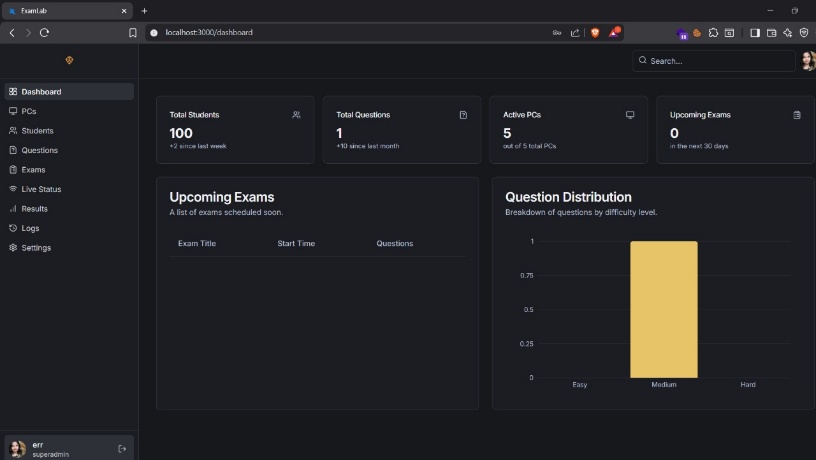
Admin Dashboard — metrics, upcoming exams, and question distribution chart
Approving Workstations
When a lab PC visits the root page (/) and submits its name, it creates a pending entry in pc_requests. The admin must approve it from /dashboard/pcs.
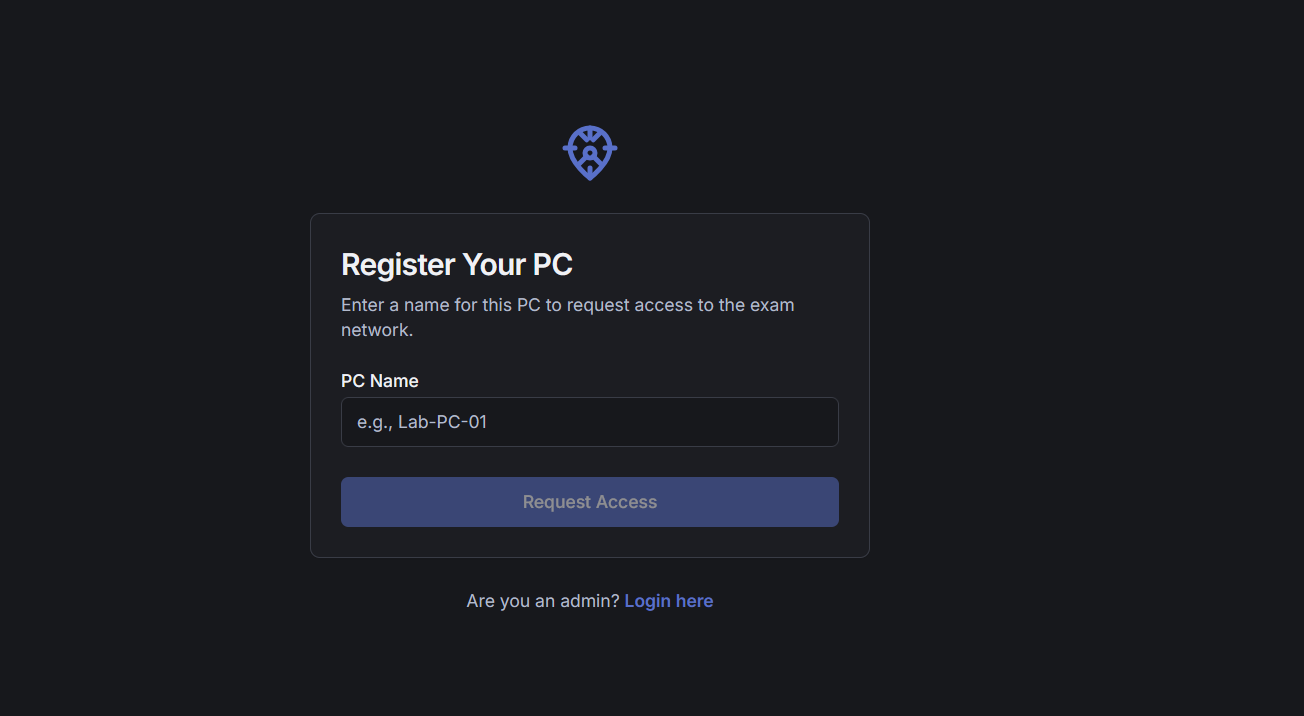
- Navigate to PCs in the sidebar.
- Find the pending request in the PC Requests table.
- Click Approve. The system moves the document from
pc_requeststopcswithstatus: 'Approved'. - The client's portal page will update on its next poll cycle (every few seconds) and display the student assignment.
Mapping Students to PCs
From the PCs dashboard, each approved PC can be assigned a student from a dropdown. This sets pc.assignedStudentId in MongoDB. The PC client immediately picks up this assignment on its next getPcStatus call and displays the student's name, roll number, exam title, and exam status.
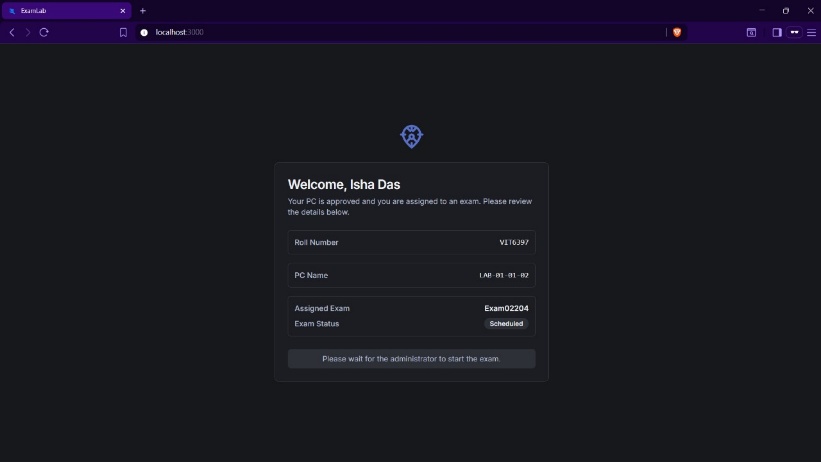
The student-facing portal shows their mapped exam and current status
Managing Students
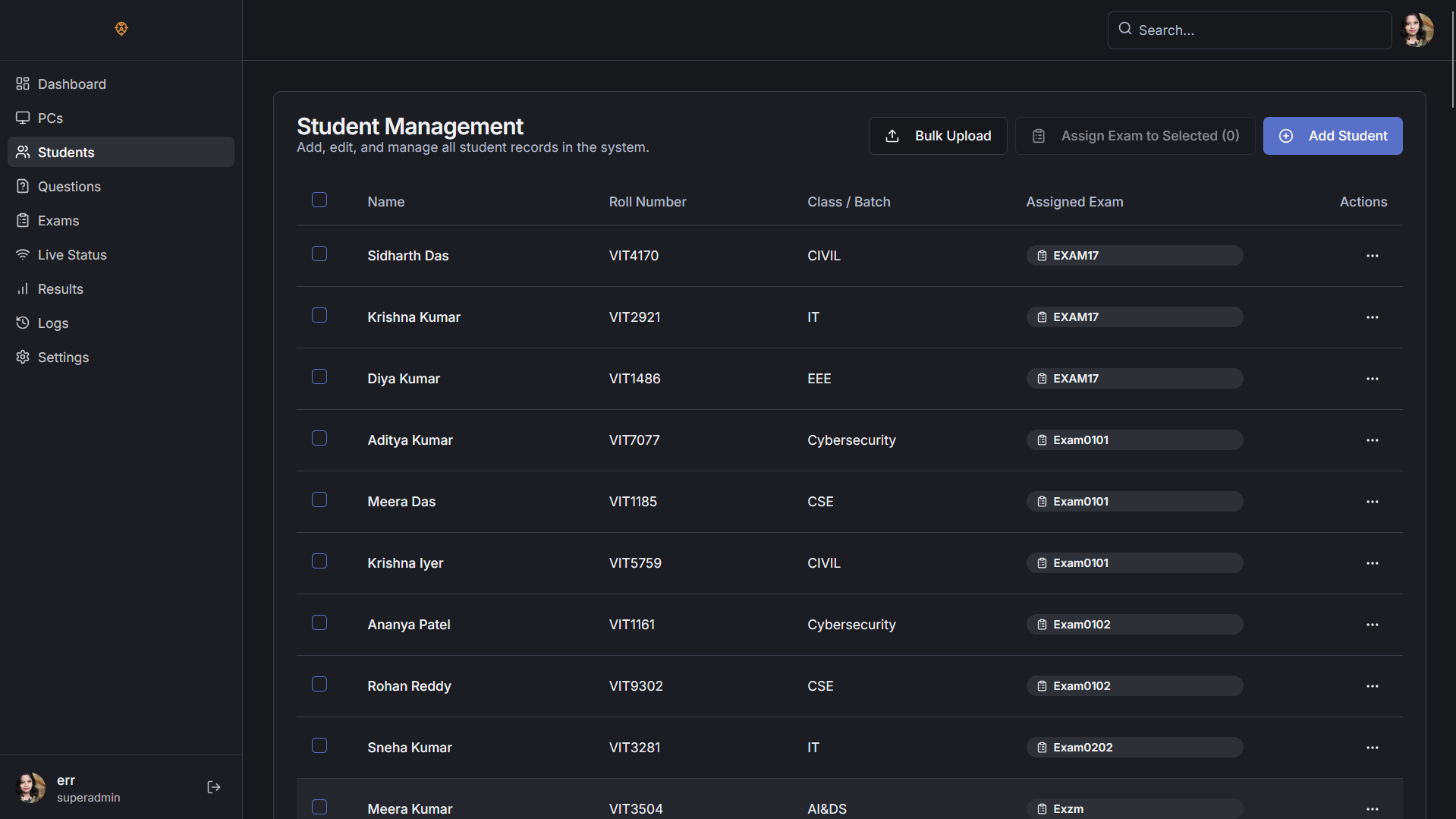
The Students page displays a searchable, sortable table of all registered students with their roll numbers, class/batch, and assigned exams.
- Add Student: Opens a form for manual entry of name, roll number, class/batch, and optional exam assignment.
- Edit Student: Updates any field. Changing the exam assignment immediately reflects on the mapped PC.
- Delete Student: Performs a cascading removal — also nullifies all PC mappings referencing this student.
- Assign Exam to Selected: Batch-assigns an exam to all checked students simultaneously.
AI-Assisted Question Bank
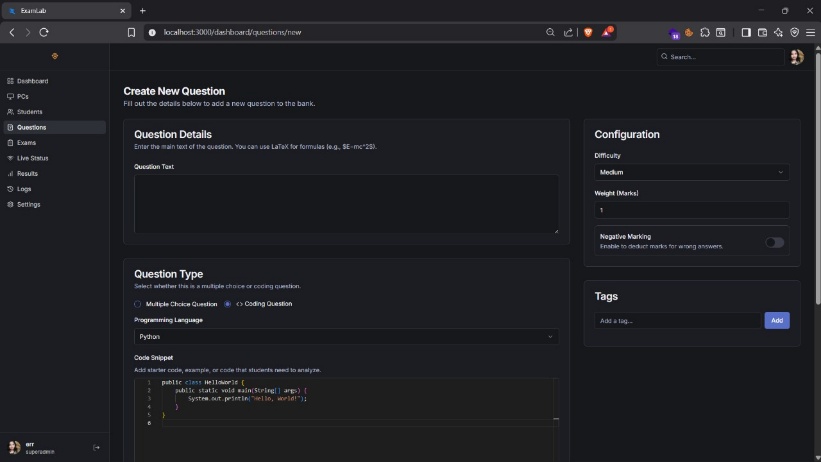
The Questions page provides a full CRUD interface for the question bank. Questions can be MCQ (2–4 options) or coding questions with a language selector and code snippet field.
The AI integration via Google Genkit (Gemini model) automatically suggests difficulty level and semantic tags from the question text, reducing manual categorization effort.
CSV Format Reference
Questions CSV (10 columns)
| # | Column | Required | Format / Constraints |
|---|---|---|---|
| 1 | Question Text | Yes | Min 10 chars. Supports LaTeX math notation. |
| 2–5 | Option 1–4 | 1,2 required | 3 and 4 are optional, leave blank. |
| 6 | Correct Options | Yes | 0-based indices. E.g., 0 or 0,2 (no spaces). |
| 7 | Category | Yes | Case-sensitive: Easy, Medium, or Hard. |
| 8 | Tags | No | Semicolon-delimited. E.g., Math;Algebra. |
| 9 | Weight | Yes | Non-negative number. E.g., 2. |
| 10 | Negative Marking | Yes | true/false or 1/0. |
Students CSV (3–4 columns)
| # | Column | Required | Notes |
|---|---|---|---|
| 1 | Name | Yes | Full student name. |
| 2 | Roll Number | Yes | Must be globally unique. Batch rejects on collision. |
| 3 | Class/Batch | Yes | E.g., CSE-2024. |
| 4 | Exam ID or Title | No | Resolved by ID first, then case-insensitive title match. |
Live Exam Monitoring
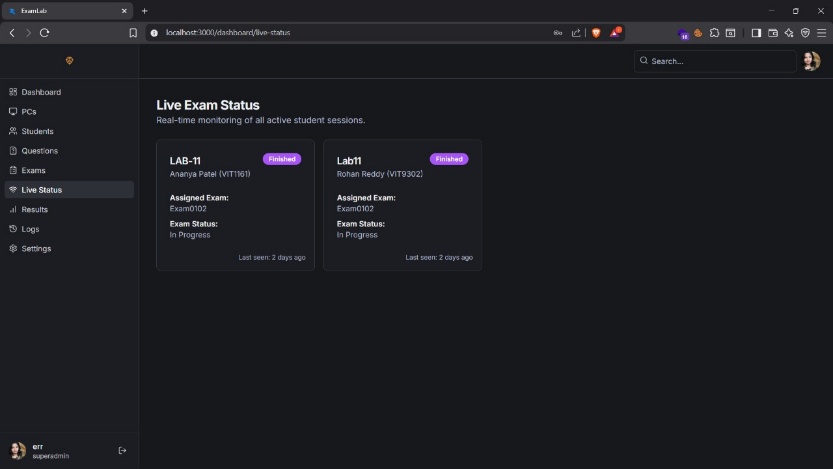
The Live Status panel at /dashboard/live-status shows a card for every active PC, displaying the assigned student, their exam, current liveStatus, and the lastSeen timestamp. PCs that have not sent a heartbeat in over 30 seconds should be considered offline.
Results & Analytics
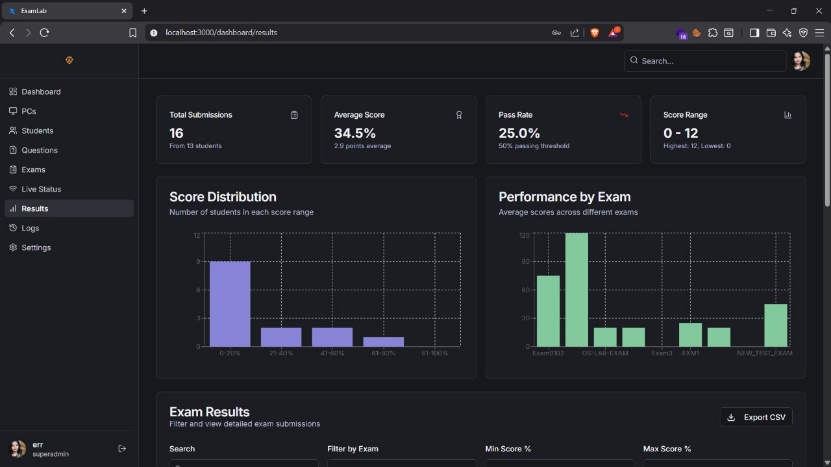
The Results panel provides a comprehensive view of all exam submissions. Key metrics displayed include total submissions, average score, pass rate, and score range. Two charts are rendered: a Score Distribution histogram and a Per-Exam Performance bar chart.
Results can be exported as CSV. All data originates from the immutable exam_results collection — once submitted, results cannot be altered through the UI.
Audit Logs
Every write operation performed through the admin dashboard writes an entry to admin_logs. The Logs page displays these in reverse chronological order.
| Action | Trigger |
|---|---|
| Admin Logged In | Successful authenticate() call |
| Created Question | saveQuestion() success |
| Bulk Uploaded Questions | bulkUploadQuestions() inserts |
| Added Student | addStudent() success |
| Deleted Student | deleteStudent() success (cascading) |